

How Do I Dim The Display Screen In My Toyota?

If you’re wondering how to dim Toyota screen brightness levels to a more comfortable setting for your eyes, you’re in luck. Luckily, the settings to change screen brightness are built right into your infotainment center, and are easily accessible. You can brighten the screen during the daytime, dim it at night, and manually switch between day and night modes by simply making a few clicks on your screen. In this guide, we’ll take you through how to dim Toyota Corolla screen brightness step by step.
Toyota Vehicle Guide: Dim Screen Display
- The process of dimming Toyota screen brightness can vary depending on your vehicle’s model and model year.
- With most modern Toyota vehicles, the screen brightness can be adjusted in the settings menu, within the “Display” category.
- You can also set the screen’s contrast and adjust how bright or dim it gets when displaying the rearview or panoramic view camera system.
- The screen brightness settings in older models can be adjusted in a similar manner, but the menu may be called “Setup.”
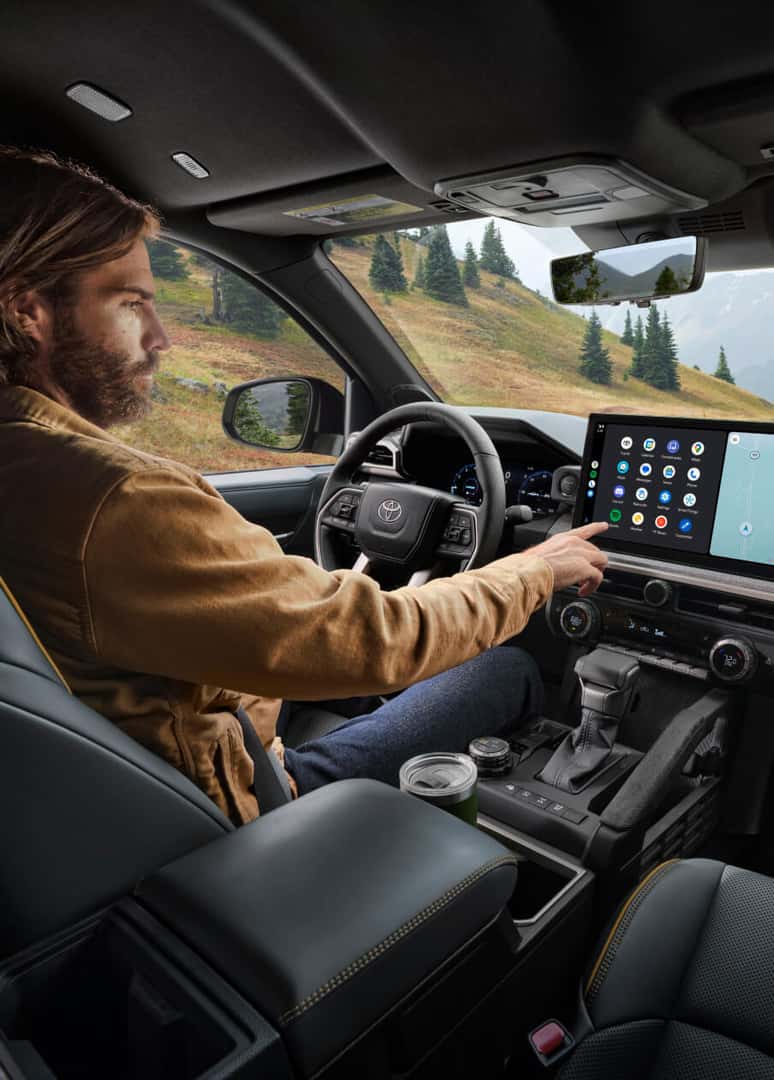
Adjusting Your Toyota Display Screen
The settings to adjust your Toyota screen may vary depending on the model year of your Toyota car, truck, or SUV, so it’s always best to refer to your manual for directions specific to your vehicle. Your manual will also have directions for adjusting other settings, like dimming your Toyota dashboard lights. However, instructions to dim Toyota screen brightness are similar across models, as they have familiar settings for screen brightness in the “Setup” or “Menu” tabs.
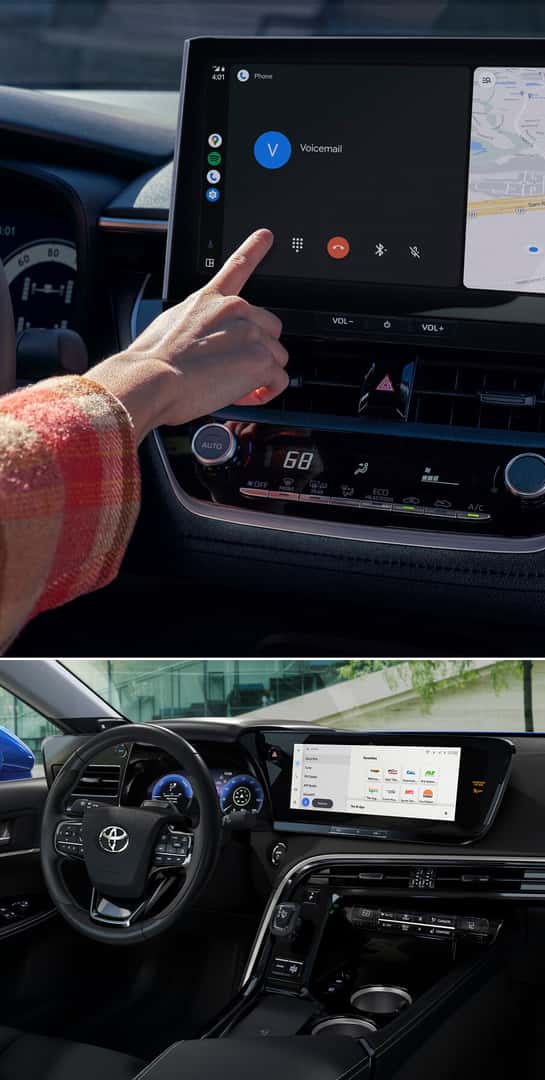
How to Dim Toyota Screen Settings Step By Step
For newer model years, the screen brightness adjustment settings are found on the menu of your Toyota vehicle.
- Step One: Touch the settings icon on the main menu, which looks like a small gear or cog.
- Step Two: Touch “Display” in the settings menu.
- Step Three: Scroll through the screen adjustment settings until you find the “Brightness” section, and then adjust the adjacent slider to dim or brighten the display. You can also scroll down and adjust the screen’s contrast in a similar manner, under the “Contrast” setting.
The “Display” settings menu will have two options for your screen and camera screen. Adjusting the brightness levels on your screen will dim or brighten how it looks generally while you drive, whereas adjusting the brightness levels of the camera will only affect your screen when it’s in camera mode.
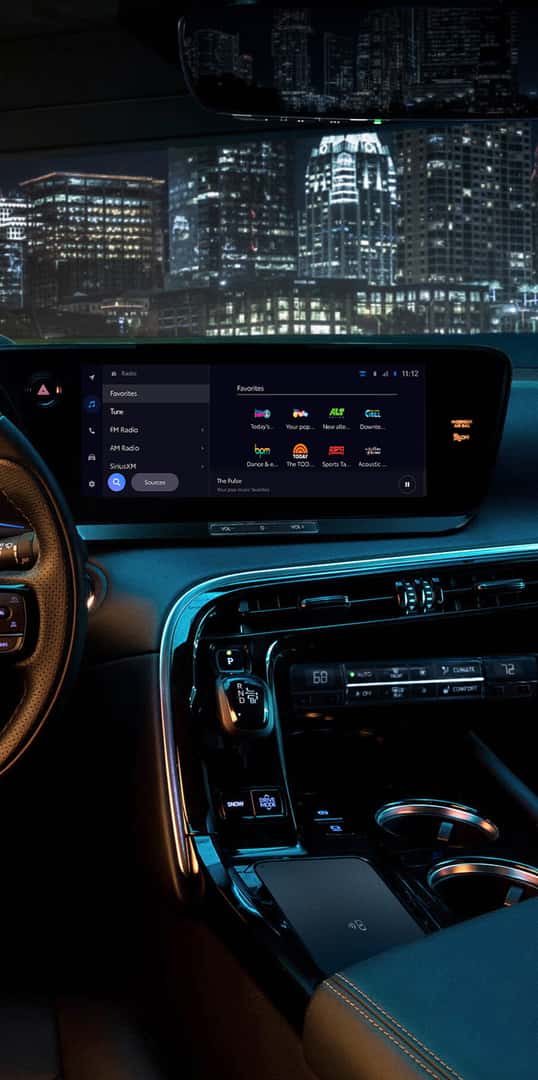
If you have an older model year, you may have a different infotainment screen and different buttons or settings. If the above isn’t looking familiar in your system, here is how to dim your screen in an older model year.
- Press the “SETUP” button on the side of your infotainment screen.
- Touch “Display.”
- Touch the items to be set. You can choose “Screen Off,” “Day Mode,” or adjust the contrast or brightness for the “General” screen or the “Camera.”
- Once you select the screen brightness setting that you want to adjust, you can then change the brightness levels using the “+” or “-” icons on the screen.
- When you are finished adjusting the screen, touch “OK.”
Again, display screens may vary depending on model and year. If, for example, you need to adjust your Toyota Highlander screen brightness, but the buttons are different from this guide, look for the “Menu,” “Setup,” or “Settings” tabs. Toggle through different menus until you find the “Settings” menu for “Display,” as this menu contains the Toyota Highlander screen brightness controls.
So, if you’re wondering how to dim Toyota screen brightness, explore the menu options to help you find your display settings, whether you’re trying to adjust your Toyota Camry screen brightness or that of any other model.
Frequently Asked Questions
How do you dim the screen on a Toyota Corolla?
Here’s how to dim a Toyota Corolla screen: find and press the “Settings” or “Setup” button. After finding it, look through the menu for the “Display” option. Once you find the Display option, you can adjust screen brightness, day and night modes, and contrast for your general and camera screens. A similar process is used to dim the Toyota Camry screen brightness.
Why is my Toyota screen dark?
If your Toyota screen is dark, it may be turned off, or it may just be too dim. Depending on the year and model of your vehicle, your Toyota screen may have settings to temporarily turn off the display or adjust brightness settings. Check your owner’s manual for instructions on how to adjust your screen brightness settings and how to toggle your display screen on and off.
How do I adjust the brightness on my Toyota car screen?
Adjusting the brightness on your Toyota screen is simple. However, directions will vary depending on the screen type, model, and year of your vehicle. In general, you need to look for a “Settings” gear icon on your screen or a “Setup” button beside your screen. Once in the settings or setup menu, look for a “Display” option. You can adjust screen brightness and contrast in the Display menu.
0 comment(s) so far on How Do I Dim The Display Screen In My Toyota?